Scene authoring¶
Once your devices are discovered, grouped, and any per-device Specials are configured, this guide walks the scene-editor side: composing scenes, the action kinds, the target picker, offset mode, the run flow, and scope on multi-network setups.
Audience. Operators who already have devices on the wire (see Discover & configure devices) and now want to author the effects they fire during a race.
The reusable effect library a scene draws on lives in RL
Presets. For the on-disk shape of scenes.json see
scene-format.md; for the on-screen map
of the WebUI see the WebUI Overview.
The Scenes page¶
Open the Scenes page from the menu band.
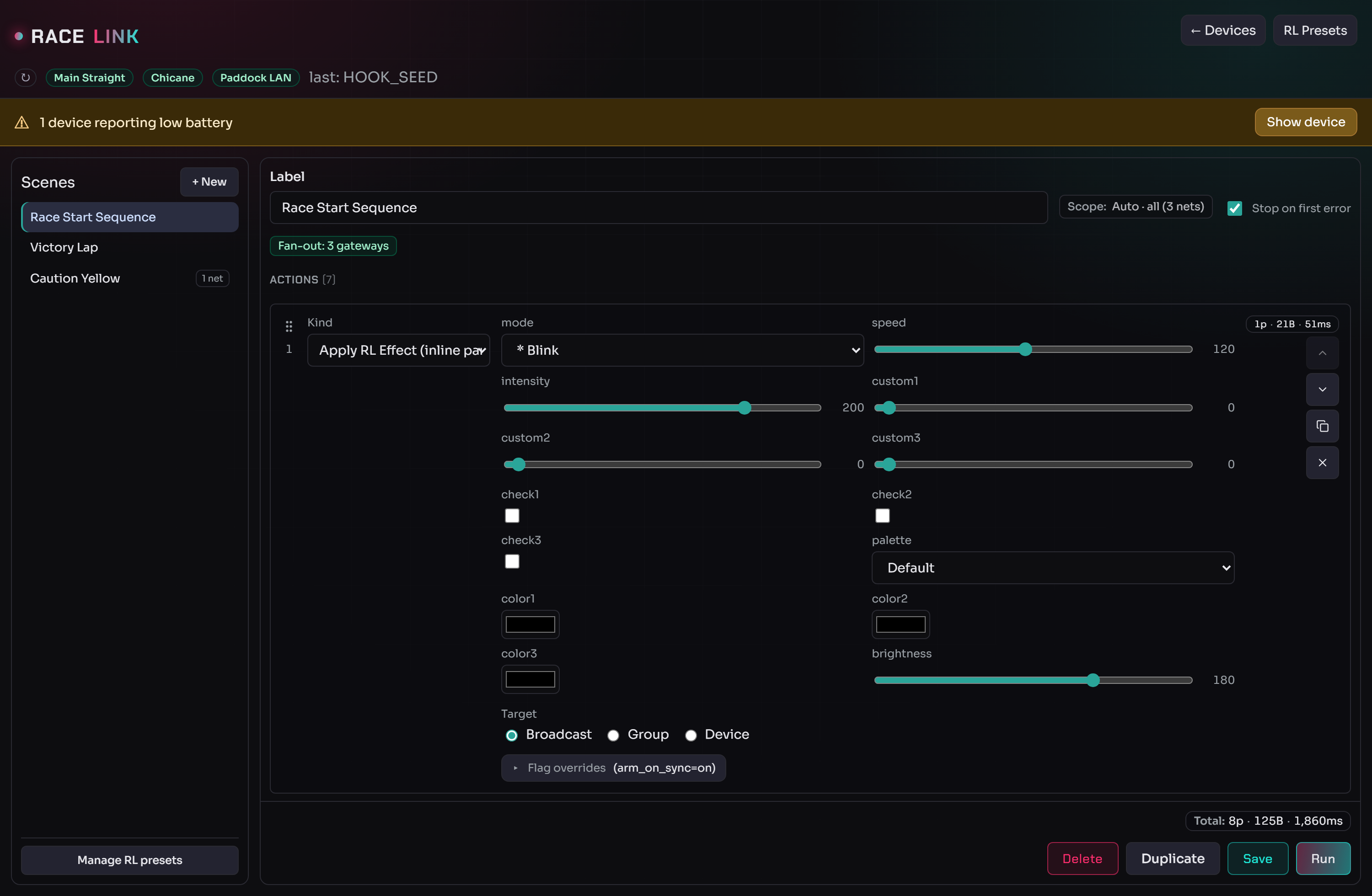
The left sidebar is the scene library; the right pane is the editor for the selected scene (label, scope chip, Stop on first error toggle, the action list, and the sticky footer with the cost total and the run controls).
The scene library¶
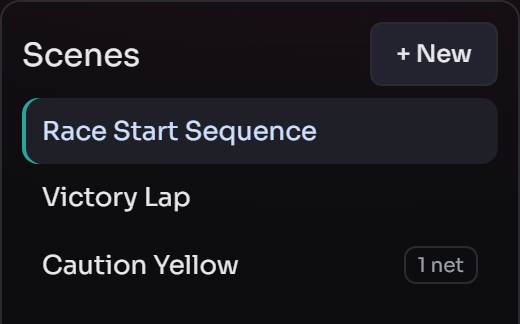
Each row is a saved scene. A small badge (e.g. 1 net) flags a scene pinned to a single network via Explicit scope. The menu band carries + New, Duplicate, Delete, and Manage RL Presets.
Author a scene¶
Click + New to start a draft.
- Set the Label (free-form text).
- Click Add action at the bottom of the list to append an action.
- Each action picks a kind and configures its target and parameters via the unified target picker.
- The cost badge under each action shows packets / bytes / airtime; the scene-total badge in the footer shows the sum.
- Click Save (or Create for a new scene). Drafts survive page reloads as long as you don't close the tab — but the unsaved-changes warning fires on refresh / close / nav-away if you have edits.
Reordering, inserting, and duplicating actions¶
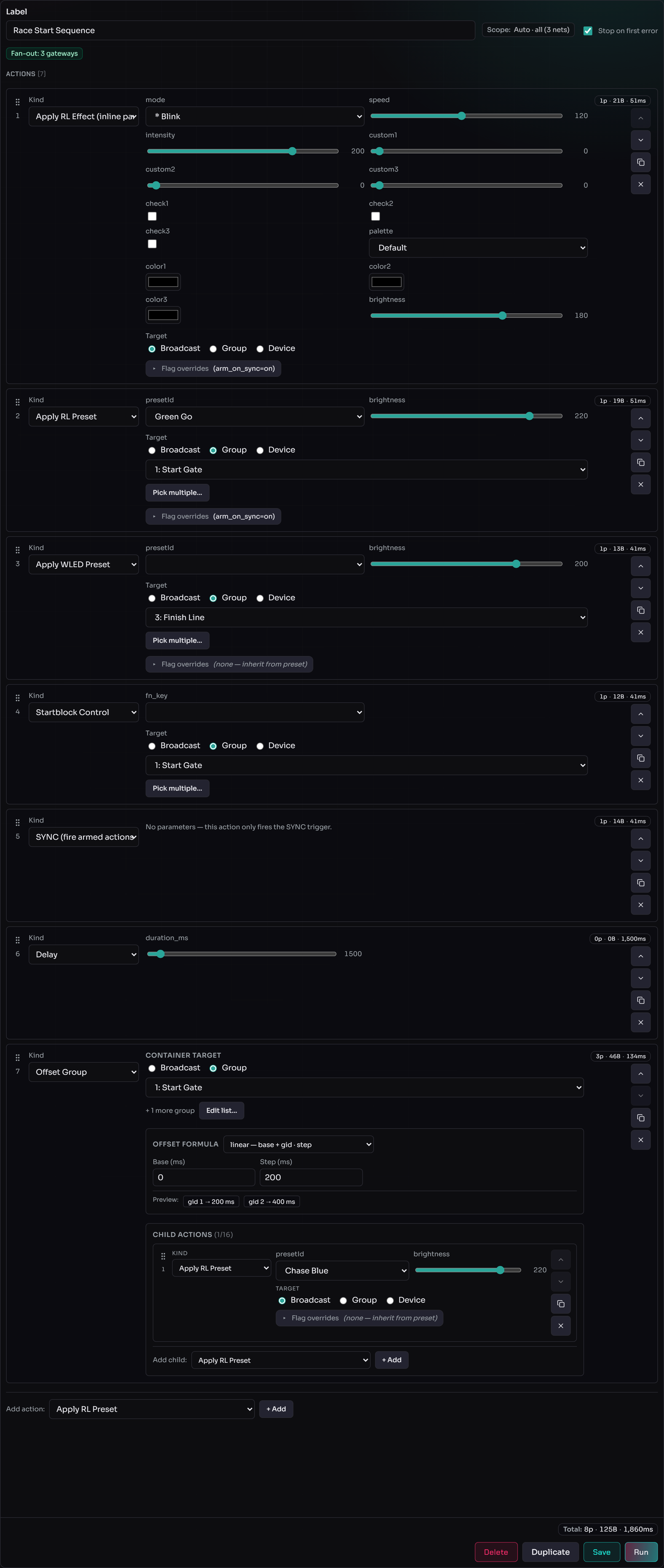
- Drag to reorder. Each action row carries a drag handle (the dotted grip on the left). Drag a row up or down to reorder; the up/down chevrons on the right do the same one step at a time.
- Insert in the middle. Hover the gap between two rows to reveal a thin + Insert action chip — clicking it opens a compact kind picker right there, so you don't have to append at the bottom and drag the new row up. The bottom Add action button remains for appending at the end and is the only entry point on an empty scene.
- Duplicate. The duplicate icon on any row clones it directly below the original — handy for repeating a preset with a different target.
The same drag-reorder, hover-insert, and Duplicate pattern works for
the child actions inside an Offset Group container.
The sticky footer¶

The footer pins the scene-total cost badge (Total: 8p · 125B ·
1,860ms) and the Delete / Duplicate / Save / Run buttons so
they're always reachable on a long scene.
Action kinds¶
A scene action is one of these kinds. The header badge on each row
shows that action's estimated cost (packets · bytes · airtime).
Apply RL Effect (inline parameters)¶
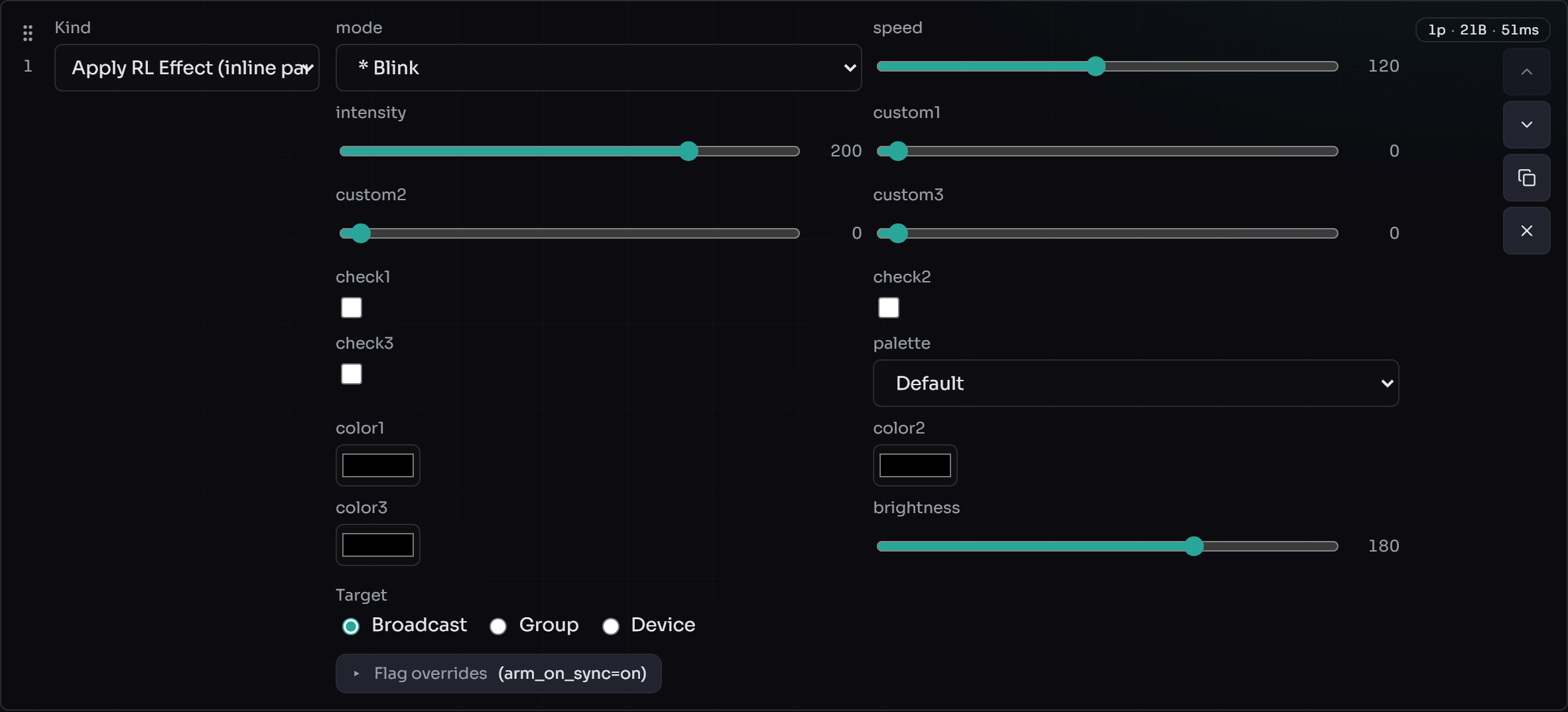
Dispatches an effect with its parameters inlined directly into the
action (OPC_CONTROL): mode, speed, intensity,
custom1–3, check1–3, palette, color1–3, and
brightness. Use this for a one-off effect; for a reusable named
snapshot, prefer Apply RL Preset.
Apply RL Preset¶
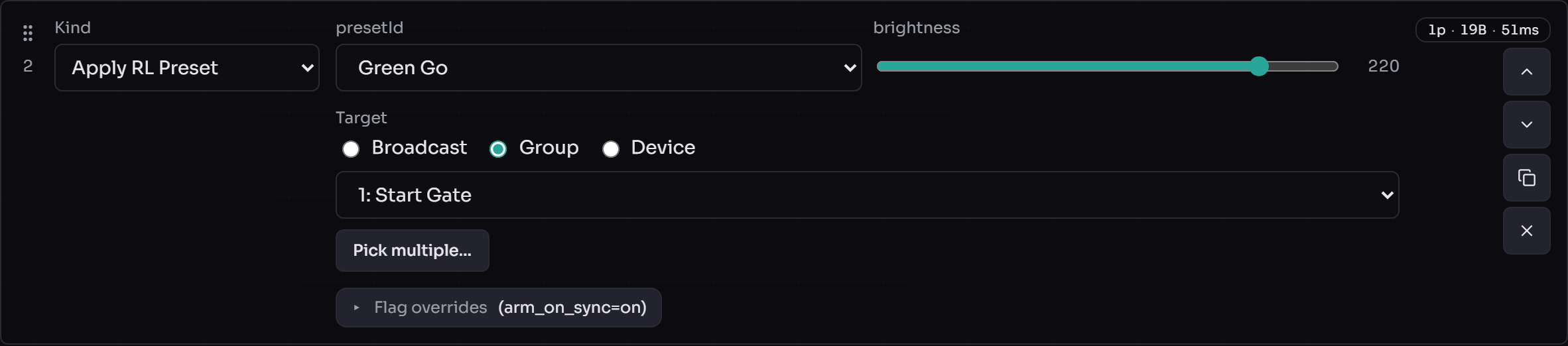
Applies a saved RL preset by name (presetId), with a
brightness override and the target picker. The Flag overrides row
(e.g. arm_on_sync=on) controls whether the action arms on the device
and fires on the next SYNC instead of immediately.
Apply WLED Preset¶
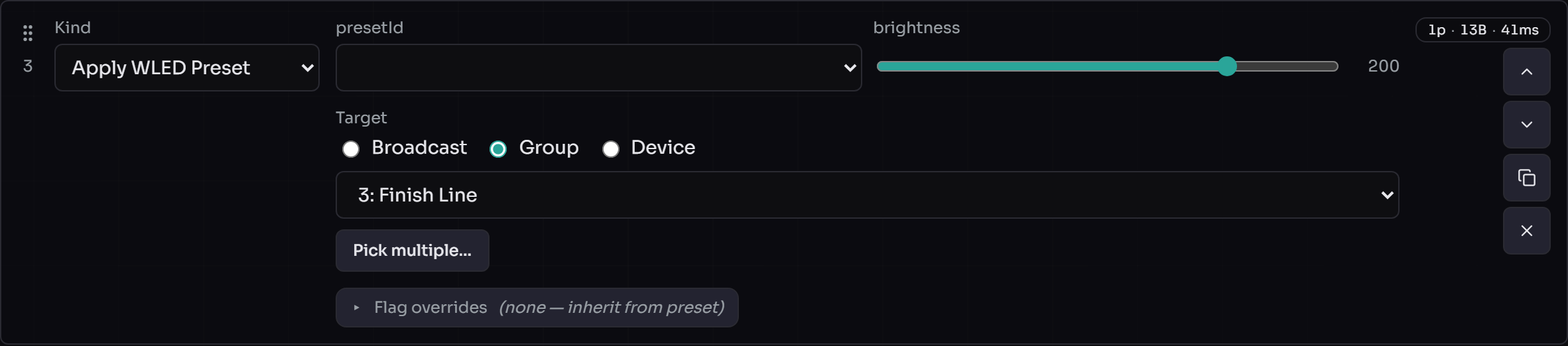
Applies a WLED per-device preset slot by index (OPC_PRESET). Manage
the underlying slots via the WLED Presets
dialog.
Startblock Control¶

Sends a starting-block function (fn_key) to the targeted
starting-block group(s).
When the target is a group, the host streams the pilot-slot data
efficiently: it reads each startblock device's number of slots / first
slot config (the 0x8C / 0x8D properties), works out which of the
eight slots the group's devices actually cover, and broadcasts only
those slots — one OPC_STREAM packet per covered slot, reaching every
device that shows it. A group with no startblock device streams nothing.
ACKs are awaited only from the online startblock devices that cover a
slot, so a plain WLED node in the same group, an offline member, or a
device that doesn't cover the slot never burns the retry budget (a single
offline member used to stretch a ~1 s update into ~30 s of dead retries).
Both startblock node boards — the v3 startblock and the Heltec Wireless
Paper (device types 50 and 51) — are addressed the same way.
SYNC¶

Fires the SYNC trigger so every previously armed (arm_on_sync) action
materialises at once. No parameters, no target — it's a broadcast tick.
Delay¶

Pauses the runner for duration_ms before the next action. Costs no
packets (0p · 0B) but adds wall-clock time — see the cost-badge
pitfall.
Offset Group¶
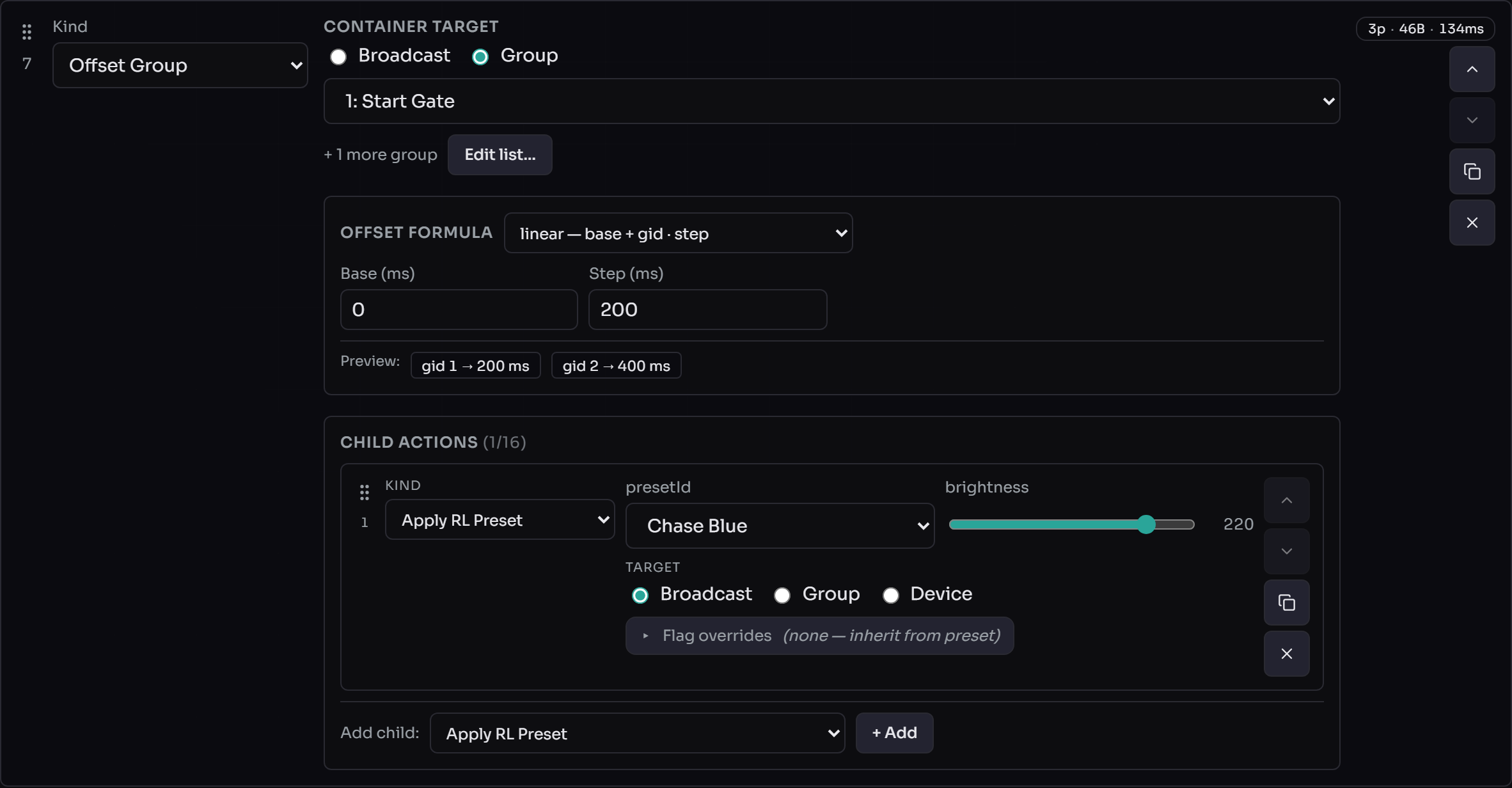
The container action: pick which groups participate (the container
target, Broadcast or Groups — Device is hidden here), choose the
offset formula that turns each group's id into a per-device delay,
and drop child actions inside. The preview chips
(gid 1 → 200 ms, gid 2 → 400 ms) show the resolved offsets live.
Children typically carry arm_on_sync so they queue on the device and
fire offset-shifted on the next SYNC. Full behaviour in Working with
offset mode.
The target picker: Broadcast / Groups / Device¶
Every action that targets devices uses the same picker — three radios with the matching value picker below:
- Broadcast — every device on the wire receives the packet. No
value picker; one packet hits the whole fleet (
recv3=FFFFFF,groupId=255). The cheapest wire path; pick this when the effect is for everyone. - Groups — pick one or more groups via a search dialog. Length-1 is
the common case; longer lists fan out one packet per group. The
action body shows a compact
N groups · M devicessummary plus an Edit groups… / Pick multiple… button. Inside the dialog a search field filters live and three batch buttons (Select all hits, Deselect all hits, Invert hits) act on the visible hits. Apply writes the selection; the footer warns if you've selected every known group — the host's save-time canonicaliser then rewrites the target to Broadcast so the runtime and the cost badge agree. To keep a frozen subset (one that won't auto-include a group added later), un-check at least one group. - Device — pick one device from a MAC dropdown. The host sends with
the device's stored
groupId, surfacing any drift between the host's repository and the device's actual state (see the Single-device pinned rule).
The picker hides Device at the Offset Group container level — the offset formula is per-group, so a single-device container target is invalid. Children inside an Offset Group get the full picker again, with Groups filtered to the parent's participating set.
The cost badge below each action shows packets / bytes / airtime. For Offset Group containers it also reports the optimizer's chosen wire path (Strategy A / B / C) so you can see whether the broadcast formula or per-group fan-out won.
Working with offset mode¶
The Offset Group action is the right tool when you want different groups to start the same effect at different moments (a "wave" or "cascade" along a row of gates). The container has three parts:
- Participants (target picker, Broadcast / Groups): which groups receive the offset.
- Mode: the formula that turns each device's groupId into a delay
in milliseconds. Five options:
linear—offset = base + groupId × step. A straight cascade.vshape—offset = base + |groupId − center| × step. A V aroundcenter.modulo—offset = base + (groupId % cycle) × step. Repeating cycle.explicit— give each group its ownoffset_ms. Most flexible.none— clear any previously-configured offset. The "deactivate offset mode" workflow.
- Children: actions to dispatch with the offset applied. Children
typically have
arm_on_syncenabled; they queue on the device, then fire all at once (offset-shifted) when the nextSyncaction runs.
Important: offset mode is sticky¶
Once a device has executed an Offset Group action with a non-none
mode, it is in offset mode until you explicitly take it out. The
firmware enforces this strictly:
- Normal (non-
offset_group) actions are silently dropped on devices in offset mode. The master bar shows TX activity but the devices don't react. Offset Groupactions with a non-nonemode reach those devices (and reach exactly them — the broadcast targeting optimisation depends on this).- Only an
Offset Groupaction withmode=nonetransitions the device out of offset mode.
This is by design: switching between "in offset mode" and "not" is an explicit operator action, not a side-effect of regular dispatch.
Clearing offset mode¶
An Offset Group action with mode=none and at least one child does
two things in one scene:
- Sends
OPC_OFFSET(NONE)to the participants (setspendingChange.mode = NONE). - Sends each child with the
OFFSET_MODEflag set to0. The strict gate accepts these, and on materialisation the active state transitions toNONEtoo.
After this action runs, the participants accept normal packets again.
You cannot clear offset mode with a normal action. If your scene has
a plain Apply WLED Preset after an Offset Group(linear), the preset
is silently dropped on the offset-configured devices. Insert an
Offset Group(mode=none, children=[…]) before the preset.
Pure clear without an effect: use mode=none with a placeholder
child (e.g. rl_effect with mode=0, brightness=0). The
OPC_OFFSET(NONE) packet clears; the placeholder child carries F=0
to materialise the transition.
Sticky offset on children: a child action's offset_mode flag is
decided by the parent's mode, not by per-child flags_override.
Setting offset_mode=False in a child override is a no-op.
Operator workflow rule of thumb¶
Run scenes in this order when mixing offset and normal effects:
Offset Group(mode=linear/etc.)— set up offset, queue effects, fire SYNC.- (Optional) more
Offset Groupscenes — change the formula or queued effect; offset mode stays. Offset Group(mode=none, children=[…])— exit offset mode.- Normal scenes — work as expected on the now-cleared devices.
If a normal scene "doesn't do anything" but the master bar shows TX
activity, the targets are probably still in offset mode. Run an
Offset Group(mode=none) first.
Run a scene¶
With a saved scene selected in the sidebar, click Run. The relevant gateway badge goes to TX; the action rows border-colour green (ok), red (error), or amber (degraded) as the run progresses. The summary lands in the Last run status line. The Run button (and Save / Duplicate / Delete) disable for the duration so you can't queue a duplicate by mis-clicking.
"Stop on error" (default ON)¶
Each scene carries a Stop on first error checkbox in its header, default checked:
- Checked (default): the runner aborts the moment any action fails. Remaining actions are marked skipped (greyed pips) and the status line reads e.g. "aborted at action #3 (tx_rejected: txPending). Remaining actions skipped — uncheck 'Stop on error' to play through." A half-failed sequence usually leaves the network in a state that doesn't match operator intent, so further sends waste air-time.
- Unchecked: every action runs regardless of earlier failures. Useful when each action is independent (e.g. a snapshot dump).
A degraded outcome (e.g. an action targets a device the host doesn't
know) does not trigger the abort — only outright ok=False
terminates.
Scene scope on multi-network setups¶
When you have multiple gateways attached, every scene carries a Scope chip in the editor header (next to "Stop on first error"). Click it to choose between Auto and Explicit:
- Auto (default) — the host computes the scope from the scene's action targets at runtime. The chip shows what Auto currently resolves to (e.g. "Auto · TrackA + TrackB") and updates live as you edit.
- Explicit — pin the scope to a specific set of networks. Per-action target pickers then filter their group/device dropdowns to in-scope networks only.
When to use Explicit: a "fleet trigger" scene that should only fire
on one race's network; a broadcast-target action you want scoped to a
subset of networks; or anti-mistake pinning so a future edit can't
silently widen the scope.
Out-of-scope actions. Switching to a smaller Explicit scope flags existing rows that now target out-of-scope devices with an "out of scope" warning chip and a red border; Save attempts but the server returns HTTP 400 with the offending row highlighted.
Deleted network in an Explicit scope. The sidebar shows an amber dot
next to the scene; opening it surfaces the stale id with a remove-X. The
runtime soft-filters the missing id; if all ids were stale, broadcasts
are recorded as degraded (error="scope_resolved_empty") rather than
silently widening back to "every gateway".
Fan-out indicator. When a scene's broadcasts will hit 2+ gateways, a green "Fan-out: N gateways" pill appears under the header (hover for the names). LoRa airtime stays the same as a single-network broadcast — workers run in parallel.
For the wire-format details + degradation rules table see multi-network.md §"Scene broadcast scope".
Measured run-time alongside estimates¶
After a successful run, the cost badges extend with an "actual: NNN ms" fragment:
The "≈ X ms" is the estimated LoRa airtime (Semtech AN1200.13). The "actual: NNN ms" is the measured wall-clock duration of that action on the most recent run (USB latency, gateway LBT backoff, host-side overhead). A hover tooltip shows the breakdown:
The actual values stick until you load a different scene, create a new draft, or run the same scene again. Edits don't invalidate them — the estimate side updates live, but "actual" keeps the last run's data so you can compare before/after tweaks.
Common scene-editor pitfalls¶
"Run reports OK but nothing happens"¶
- The action targeted a group with no capable devices. The editor's cap filter prevents this in new scenes, but old scenes may predate it — re-edit and the dropdown tells you which groups have the capability.
- The target devices are offline. The runner doesn't know that — refresh the device table (Get Status) to see who's reachable.
- The target devices are still in offset mode from a previous
Offset Group(linear/etc.)and the current action is normal. Insert anOffset Group(mode=none, children=[…])— see Clearing offset mode.
"Scene editor says I have unsaved changes but I just saved"¶
A successful save resets the unsaved-changes flag. If the prompt fires anyway, you've changed something since (added a character, dragged an action, …). The dirty check is byte-exact on the canonical scene shape; even whitespace in the label counts.
"The cost badge says ≈ 50 ms airtime but my scene takes 5 seconds"¶
The cost badge shows radio airtime. Delays (Delay action) and
host-side inter-action gaps aren't included. Delays + airtime is roughly
your end-to-end run time.
Limits¶
- Actions per scene: 20 (configurable in
scenes_service.py). - Children per offset_group: 16.
- Brightness: 0–255.
- Effect parameters: 0–255 each.
- Group ids: 1–254 (0 is Unconfigured, 255 is broadcast).
- Preset ids: 0–255.
For gateway / OTA / network-level limits see Firmware updates and Multi-Network.
See also¶
- RL Presets — the named effect library scenes apply.
- WebUI Overview — the on-screen map.
- Multi-Network operator guide — scene broadcast scope at the wire level.
- Opcodes —
OPC_CONTROL/OPC_OFFSET/OPC_SYNC. - Scene file format —
scenes.jsonon disk.