Firmware updates & WLED presets¶
Flashing WLED firmware over the air (OTA) and pushing presets.json
to your nodes — both use the same per-device WiFi flip-flop under the
hood, so they share a dialog layout and the same failure modes.
Audience. Operators updating node firmware or WLED preset slots. For the OTA gate matrix (developer view) see WLED OTA gate matrix. OTA presupposes a node that already runs RaceLink firmware — for the first flash of a new device (and for the gateway, which has no OTA path) see Flashing firmware from a release.
Firmware Update (OTA)¶
Open the Firmware Update dialog (Devices page). It connects to each target device's WLED AP, optionally uploads firmware / presets / cfg, and reports per-device progress live.
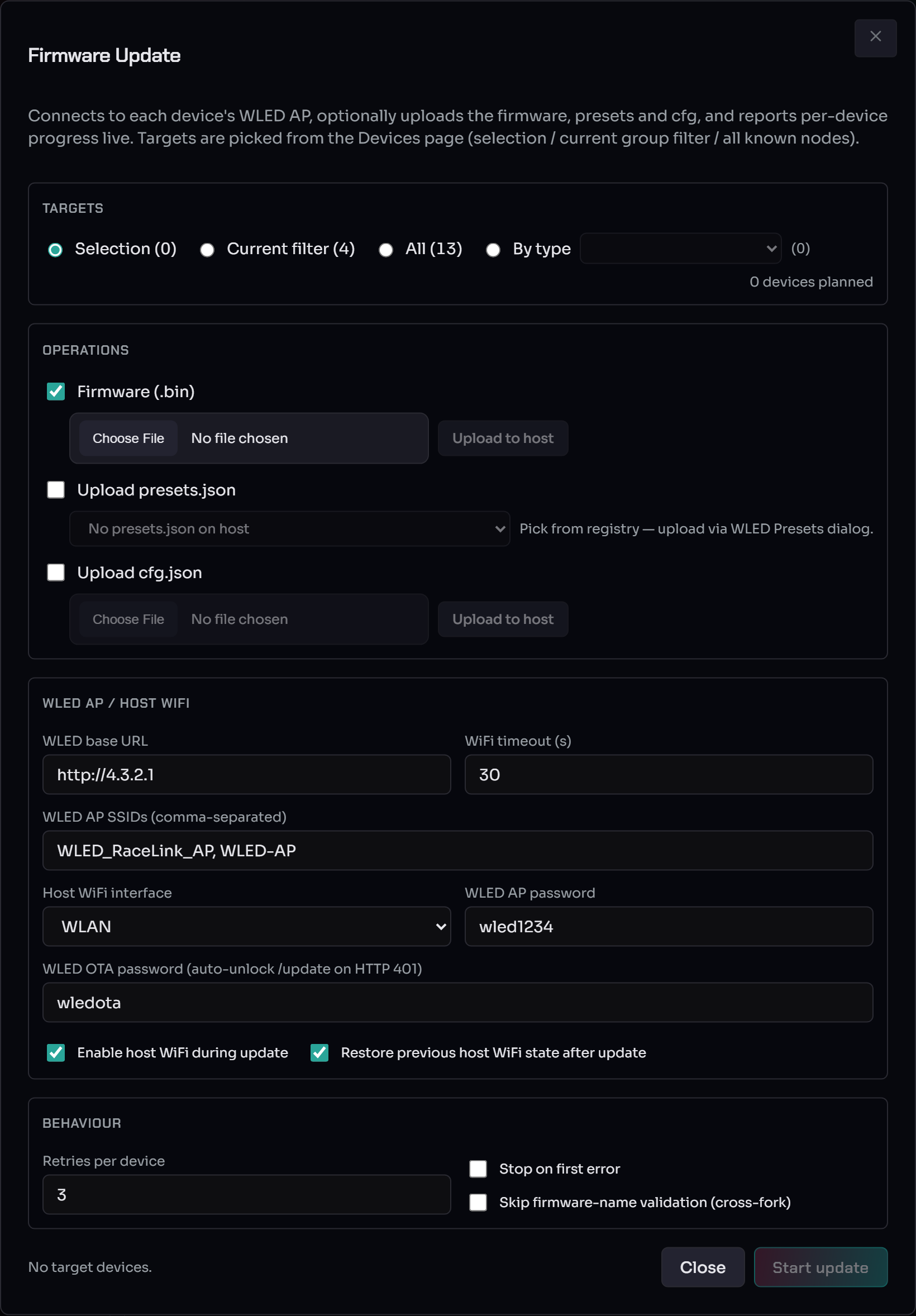
Top to bottom:
- Targets — Selection, Current filter, All, or By type. The planned-device count is shown on the right.
- Operations — tick Firmware (.bin) and choose the binary; optionally Upload presets.json and Upload cfg.json.
- WLED AP / Host WiFi — the WLED base URL, WiFi timeout, the AP
SSIDs to scan for (default
WLED_RaceLink_AP, WLED-AP), the host WiFi interface, AP password (defaultwled1234), and the WLED OTA password (defaultwledota, auto-unlocks on HTTP 401). Enable host WiFi during update and Restore previous host WiFi state after update default on. - Behaviour — Retries per device, Stop on first error, and Skip firmware-name validation (cross-fork).
Plan ~30 seconds per device¶
A 10-board fleet finishes in ~5 min, a 4-board fleet in ~2 min. The
dialog shows this estimate next to Start update; during the run a
live elapsed · ~remaining left counter self-refines from observed
times once one device has completed, then counts down monotonically.
The estimate scales linearly — larger fleets don't slow each device
down.
Per device, the host:
- Sends
OPC_CONFIGto enable the device's WLED AP and waits for the ACK (1.5 s with one automatic retry). If both attempts time out the device is marked failed and the workflow moves on within ~3 s. - Scans for the AP SSIDs and connects with the AP password, locking
the connect to the device's predicted AP-BSSID (ESP32 default
STA_MAC + 1) so it can't grab a previously-flashed node still in the scan cache. - Verifies the node's MAC via
/json/info. - Uploads the firmware binary.
- (Optional) uploads
presets.jsonand/orcfg.json. - Disconnects host WiFi from the rebooting device.
- Waits for the device to re-announce on the RaceLink radio, then for the auto-restore path to push its old group ID back.
- AP-close cleanup is conditional — on a clean upload the WLED
reboot drops the AP automatically. The AP-disable
OPC_CONFIGonly fires when AP-enable succeeded but a later step failed (so the AP is still broadcasting and would expose the WLED AP credentials).
Where the time goes (per device, typical)¶
| Phase | Duration |
|---|---|
| RaceLink AP-enable round-trip | ~0.3 s (up to 3 s on retry+fail) |
| Wait for AP to appear in scan | ~5 s |
nmcli connect (auth + DHCP) |
~2 s (up to ~10 s on channel contention) |
Firmware HTTP /update (1.1 MB binary) |
~10 s |
| Post-upload host-WiFi disconnect | ~0.1 s |
Device reboot → IDENTIFY_REPLY |
~2 s |
Auto-restore SET_GROUP ACK |
~0.5 s |
| AP-close ACK (only on the error-after-AP-open path) | ~0.3 s (up to 3 s) |
| Per-device subtotal (success path) | ~20 s |
No NetworkManager profile pre-creation is needed — the host talks to
nmcli directly. On a fresh Linux machine the one-time polkit grant
(sudo $(which racelink-setup-nmcli), then restart the host) is in
standalone-install.md §"Linux first-time setup".
During the run¶
Don't close the dialog or refresh the page. That doesn't cancel
the work (the task runs in a host-side thread) but you lose the
per-device progress display until it finishes. A failed device shows
red with the concrete failure message inline (e.g. Timeout
waiting for CONFIG ACK from <MAC> (AP-enable)), so you don't wait for
the summary to find out why. The other devices continue unless Stop
on first error is ticked. After the run, re-trigger just a failed
device by selecting it and starting a new update. The summary shows a
Total time: M:SS badge alongside success / failed / skipped counts.
Common OTA failure modes¶
HTTP 401 from /update— WLED rejected the POST. Two gates:- Same-network gate (usual in mixed AP+STA fleets). The host
POSTs
/settings/secon 401 to flipotaSameSubnet=falseand clear the lock; the retry then succeeds and the change persists in the device'scfg.json. - OTA lock with a non-default password — override the WLED OTA
password field (default
wledota).
- Same-network gate (usual in mixed AP+STA fleets). The host
POSTs
AP '<SSID>': authentication failed— wrong WiFi PSK, or the device's hostapd is rate-limiting after recent failures. Wait ~30 s and retry once before assuming a config mistake.PIN code required— the device hassettingsPINset in WLED Security. Clear the PIN; the host doesn't auto-enter it.HTTP 500 … Firmware release name mismatch— WLED rejected the binary because itsWLED_RELEASE_NAMEdiffers from the running firmware's (common when migrating between forks). Tick Skip firmware-name validation and retry. Leave it unchecked once the fleet is on consistent firmware — flashing the wrong binary for the chip variant can brick a device.
What does NOT help: changing the host's IP or netmask. The same-network gate uses the device's
Network.localIP(), not the host's. The host-side auto-unlock is the only way to clear that gate without reconfiguring each device by hand. See the full four-gate breakdown in WLED OTA gate matrix.
WLED Presets¶
The WLED Presets dialog (Devices-page menu band) uploads or
downloads a presets.json — the file that backs the Device Options →
WLED → WLED Preset slot list.
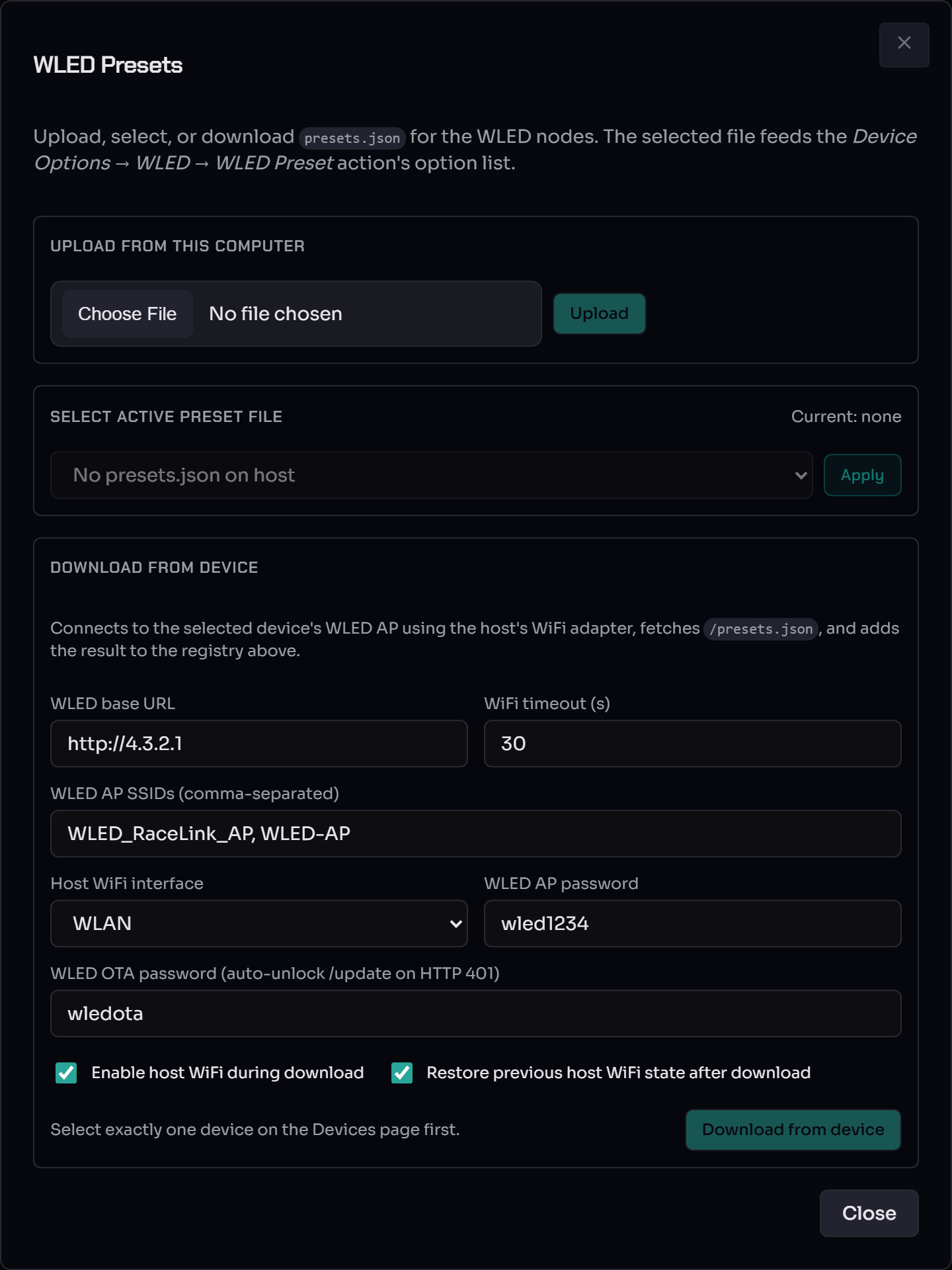
- Upload from this computer — pick a
presets.jsonand Upload it to the host's registry (validated as JSON first). - Select active preset file — choose which uploaded file is active and Apply it.
- Download from device — connects to one selected device's WLED AP
(same WiFi fields as the OTA dialog), fetches its
presets.json, and adds it to the registry. Select exactly one device on the Devices page first.
Pushing presets to many devices reuses the OTA path: the host connects
to each device's AP, POSTs presets.json, and disconnects. The task
runs through the task manager — closing the dialog doesn't cancel the
upload. Each target's WLED preset slots (1, 2, 3, …) are overwritten,
so scenes that apply a WLED preset by index resolve to those slot
definitions on the device.
RL Presets vs WLED Presets. RL presets are RaceLink-native, referenced by name from scene actions, and edited in the RL Presets dialog. WLED presets are WLED's own per-device slots, addressed by index, and managed here. Both terms are defined in the Glossary §"Preset".
Safety reminders¶
- Don't unplug the gateway USB while a scene or OTA is running. The
host detects the disconnect within ~50 ms; the badge goes red with
LINK_LOSTand auto-retries on reconnect. - Don't share the gateway between processes. Only one process can
own the USB-LoRa dongle (
exclusive=True); a second one fails withPORT_BUSY.
See also¶
- WebUI Overview — the on-screen map.
- Discover & configure devices — get devices on the wire before flashing them.
- WLED OTA gate matrix — the developer-side gate breakdown.
- standalone-install.md —
Linux
nmclipolkit setup for OTA. - Troubleshooting.